How to Draw on Pdf
How to draw on pdf. Learn how to draw on a PDF using free online tools, desktop apps, and mobile. Step-by-step methods, saving tips, and fixes
Written by Devnitys Team
You've got a PDF open and need to mark it up now. Maybe you're signing a contract, circling a clause before forwarding it, leaving feedback on a student essay, or sketching a revision on a floor plan. The fastest solution isn't always a heavyweight editor. It's the tool that lets you make the right mark, keep it readable, and open the result again on another device.
Learning how to draw on a PDF is therefore less about finding one universal app and more about matching the drawing method to the job. A browser editor can handle a quick arrow, a desktop reader may offer better undo control, and a tablet with a stylus can feel closest to writing on paper. The important part is preserving the annotation when you save, export, print, and share it.
Why Drawing on a PDF Still Trips People Up
PDFs were created to preserve a document's layout. That makes them reliable for viewing and printing, but it also means drawing usually happens as an annotation or overlay rather than as ordinary page content. Different apps can interpret that overlay differently, especially when you move between a browser, a desktop reader, and a phone.
The format's history helps explain the tension. Adobe released Acrobat 1.0 and the first PDF version in 1993, then made the PDF viewer free in 1994, which helped make viewing broadly accessible. PDF 1.3 added annotations and digital signatures in 1999, and PDF became an open ISO standard in 2008 through ISO 32000-1:2008. Those milestones helped turn PDFs into practical review files, but they didn't make every annotation workflow behave identically. You can read more about that development in the history of PDF.
The three failures that waste the most time
- The ink disappears after download. Some tools show your marks on a temporary canvas but fail to embed them correctly in the exported PDF. The file looks fine in the editing tab, then opens without annotations elsewhere.
- The signature tool only accepts typed text. A typed name may satisfy a basic form field, but it isn't the same as drawing a signature with a mouse, finger, or stylus.
- Mobile export is locked behind an account. An app may let you annotate for free, then require registration or a paid plan before you can save the finished document.
Practical rule: Before doing detailed markup, make one test stroke, download the file, and open it in a second PDF viewer.
A good workflow separates quick visual communication from precision review. Freehand ink works well for circling and sketching. Shape tools, controlled line width, opacity, and snap-to-shape are better when several people must interpret the same markup. The difference matters in legal review, design feedback, education, and client approvals, where an unreadable annotation creates more work than it saves.
Drawing on a PDF in Your Browser with Free Tools
A browser is often the quickest place to start because you don't need to install an editor or move the file into a separate desktop workflow. The Devnitys PDF tools directory is useful for browsing options by task, including tools for editing and drawing on PDFs. Look for four practical signs before uploading a document: a real pen or freehand tool, no required account, drag-and-drop upload, and direct download without an email gate.
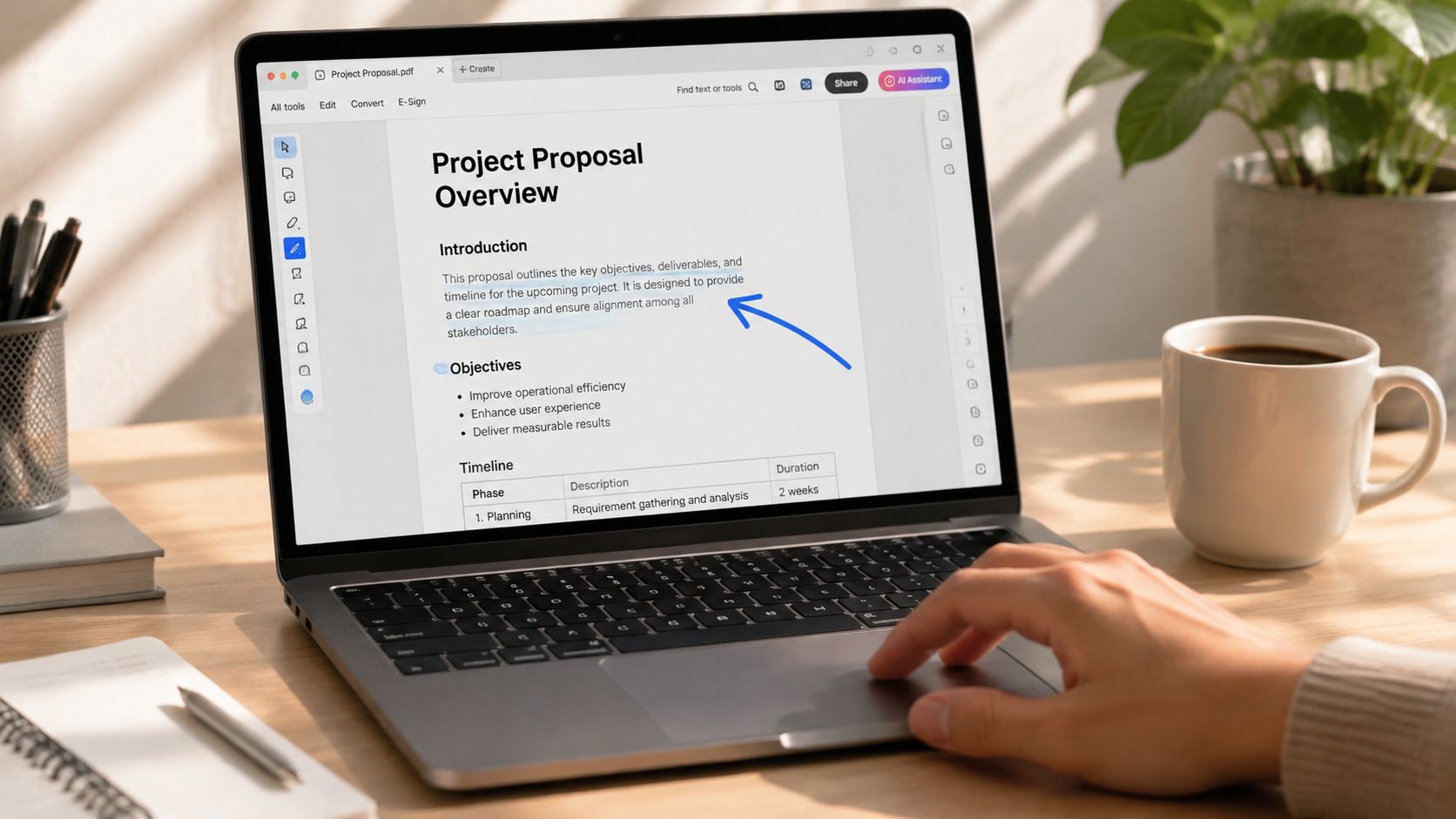
A simple browser workflow
- Open a lightweight single-file editor. These are suited to a contract note, a circled paragraph, or a quick signature. Upload one PDF, choose the pen or draw tool, and wait for every page to render before marking it.
- Set the visual style first. Pick a color that contrasts with the document and choose a stroke width that remains visible when the page is printed or viewed at normal size. Very thin ink can vanish in a compressed export, while an oversized brush can cover text.
- Draw directly on the page. Click and drag with a mouse or trackpad. On a touchscreen, use a finger or stylus. Short strokes are easier to undo than one long continuous line.
- Use a collaborative whiteboard-style editor for shared review. These tools can be useful when several people need to point at areas of a page during a live session. They're less attractive when you need a clean, formal document with tightly controlled annotation placement.
- Choose a form-focused editor when signing is part of the job. A tool with signature, shape, and freehand layers can keep the approval step in the same file. Check that the signature remains visible after download and after printing to PDF.
Download the result rather than assuming the browser has saved it. Open the downloaded file in another viewer, zoom into each marked page, and confirm that the pen strokes, colors, and signature are still present.
Browser check: If the canvas lags, close unused tabs and clear the browser cache. For precision work, prefer an editor that stores ink as a vector annotation layer, so strokes remain sharp at different zoom levels.
A browser tool is a strong choice for one-off work, but it may have limits around file size, annotation recovery, and layer editing. If you're reviewing a long design document or returning to the same file repeatedly, a desktop editor can provide a more dependable history and storage workflow.
Drawing on PDFs on Windows and Mac
Windows and macOS both include useful PDF markup features, but their built-in tools are designed for convenience rather than a complete drawing workflow. Start with them when the task is short and the document doesn't need complex layers or extensive revision history.
Windows options
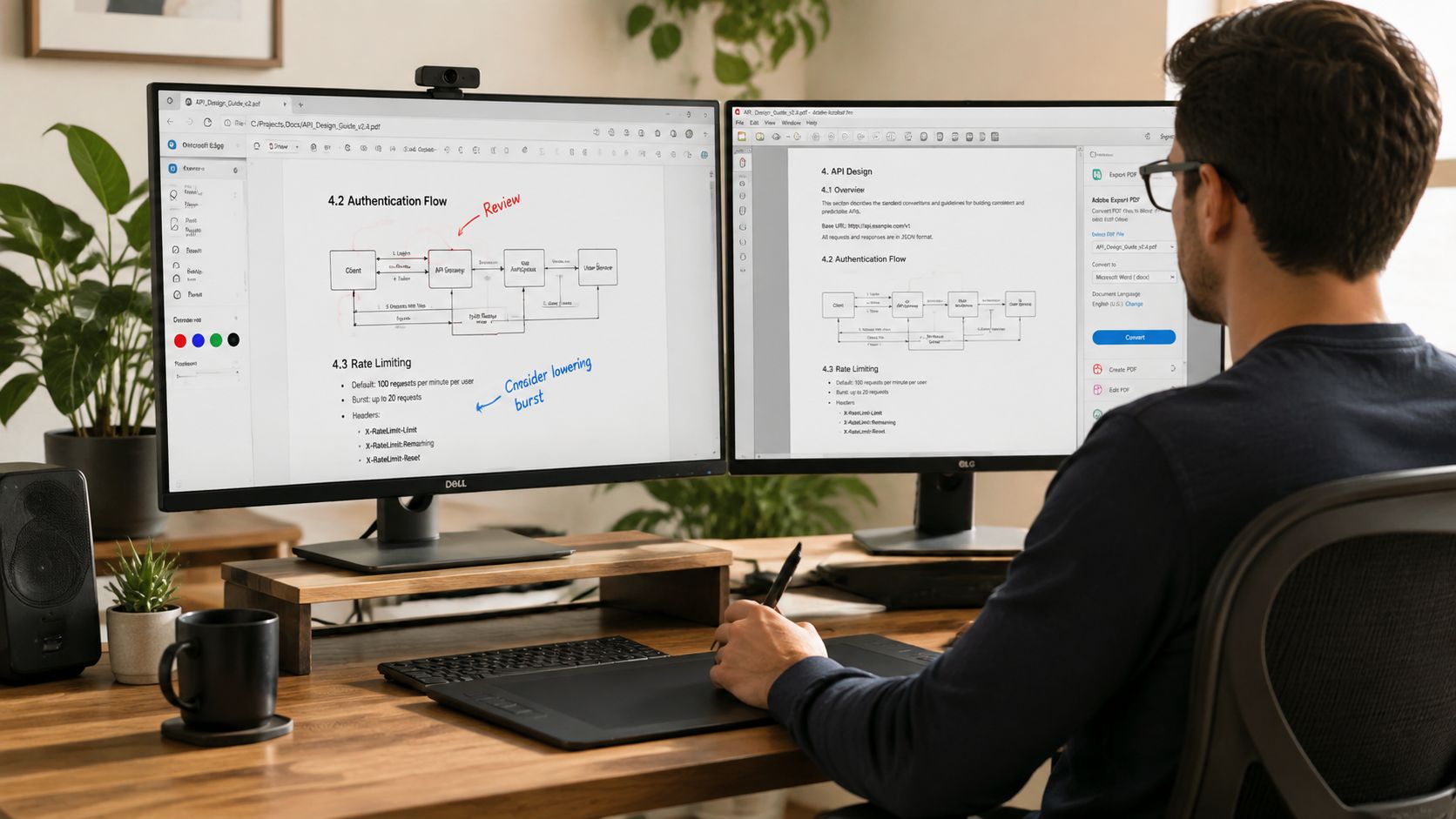
Microsoft Edge's PDF viewer lets you highlight and draw with a cursor. Open the file in Edge, select the drawing tool, choose a color and thickness, then drag across the page. It's convenient for circling a clause or underlining a sentence, but cursor drawing doesn't provide the pressure response you'd get from a proper pen input workflow.
For a rough workaround, capture the marked area with Snip & Sketch and adjust the image in Paint 3D before pasting it into a working document. That approach is acceptable for a visual reference, but it's not ideal for a document that needs searchable text, editable annotations, or a clean audit trail.
A lightweight third-party desktop PDF reader can be worth installing when Edge feels too basic. Choose one with a proper ink layer, visible undo and redo controls, selectable annotations, and an export option that doesn't flatten your work.
Mac options
Preview is usually enough for quick markup. Open the PDF, click the markup pen icon, choose draw, sketch, or a shape, then adjust the color and thickness before saving. Straight lines and standard shapes are generally cleaner than trying to draw them freehand.
Preview's important limitation is that its drawing workflow can flatten ink when you save. Duplicate the original before starting, especially if you may need to revise or remove individual marks later.
For files that need to be combined after review, keep a separate original and use a controlled merge workflow rather than repeatedly saving over one copy. The free PDF merging guide covers that type of handoff.
A dedicated drawing app makes sense when you need layers, a tablet input device, pressure sensitivity, or extensive correction. Stay with Edge or Preview for a quick visual note that only needs to survive ordinary viewing and printing.
Drawing on PDFs on iPhone, iPad, and Android
Mobile markup works best when the note is immediate. You're reviewing an attachment on a train, approving a form from your phone, or using an iPad as a digital clipboard. The built-in tools are usually faster than uploading the file to a desktop service, but the smaller screen makes stroke control more important.
iPhone and iPad
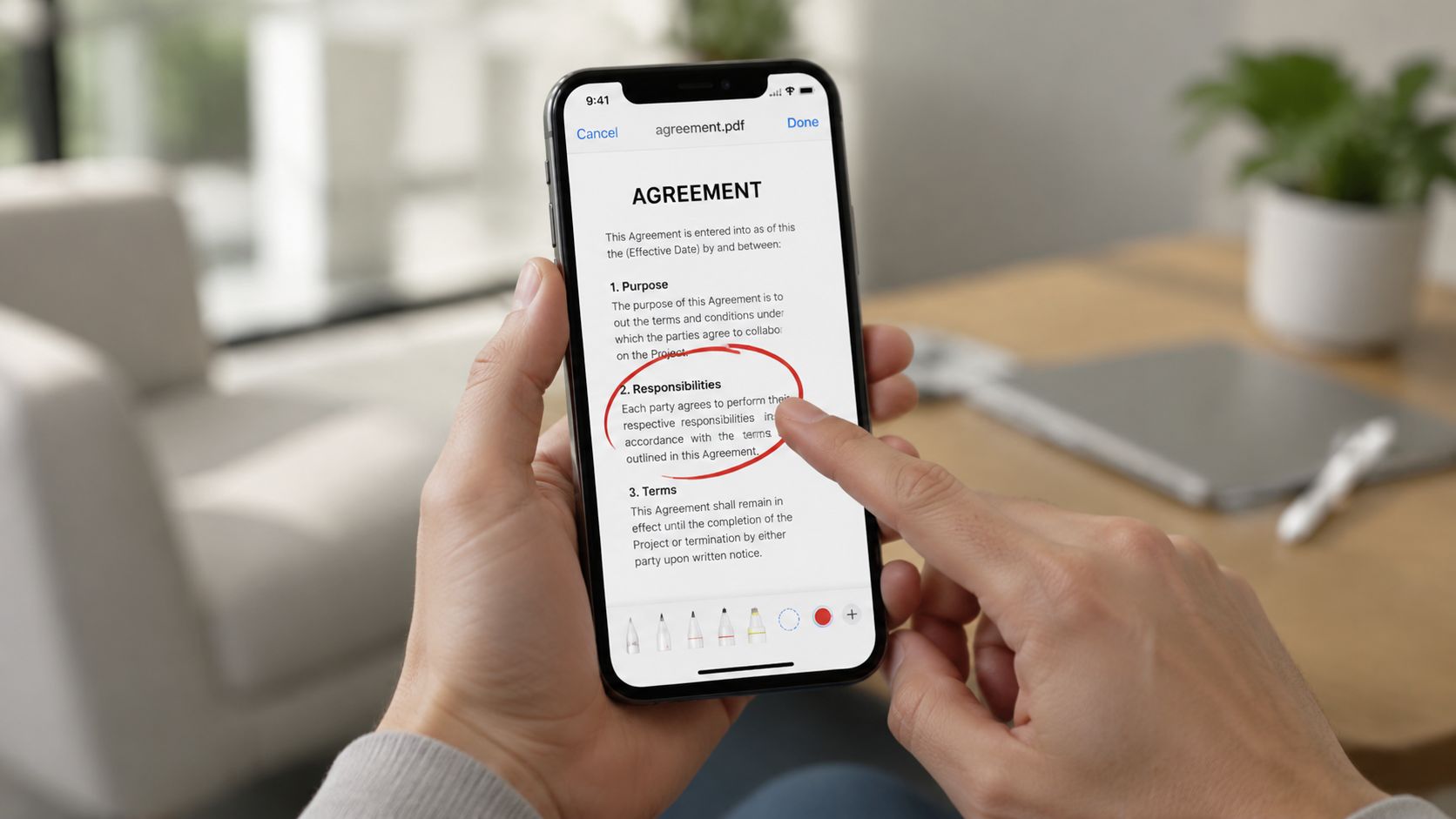
On iOS and iPadOS, open the PDF in Files, Mail, or Safari and tap the Markup icon. Select the pen, highlighter, or pencil, then choose a color and thickness. Use the ruler when you need a straight line, and undo recent strokes with a three-finger tap.
An Apple Pencil changes the experience on compatible iPads. Pressure sensitivity lets you vary the mark naturally, while palm rejection makes it easier to rest your hand on the screen. Switch between the Pencil and finger tools deliberately, because a finger is useful for moving around the page but can create accidental marks when the drawing tool is active.
Android workflows
Google Drive can provide a built-in markup route for supported PDF workflows. Open the document, choose the annotation option, select the pen, and save a copy after checking the result. Samsung devices may also offer PDF drawing through the Files app or a built-in viewer, depending on the device and software version.
For heavier handwritten notes or shape work, use a free app that doesn't force you into a sign-in before basic export. Look for a tool with separate pen and eraser controls, shape support, undo history, and a clear PDF export command. Don't judge an app only by how smooth the ink feels. Test the saved file in another viewer.
A capacitive stylus can improve control on phones and tablets, but it won't behave like an Apple Pencil or an active Android pen. Use a zoomed-in view for small signatures, keep strokes short, and place important marks away from dense text. A finger is fine for a quick circle. A stylus is much better for a margin note or a diagram that needs consistent spacing.
Choosing the Right Drawing Method for the Job
The right method depends on the mark you need to make and what must happen afterward. A freehand pen is quick, but it can produce uneven circles and uncertain arrows. A shape tool takes another action, yet it gives reviewers a cleaner visual signal.
A controlled annotation study reported mean understanding scores of 3.6 for standard PDFs and 4.4 for annotated PDFs, with p = 0.024, and found that section-level annotations outperformed document-level annotations. The collaborative PDF annotation evaluation also highlighted demand for guidance, paragraph separation, and export and search functions. The practical lesson is simple: place markup close to the relevant passage, and make it easy to retrieve later.
Precision Drawing Features by Method
| Feature | Browser (Free Web) | Windows / Mac | iOS / Android |
|---|---|---|---|
| Freehand shape recognition | Depends on the editor | Often limited in built-in viewers | Common in tablet-focused tools |
| Snap-to-shape | Available in some tools | More likely in dedicated editors | Useful where supported |
| Line weight options | Usually basic to moderate | Often clearer in installed editors | Easy to adjust, but controls vary |
| Color and opacity | Common, though opacity may be limited | Stronger in dedicated desktop tools | Convenient for quick markup |
| Undo history depth | Can be session-dependent | Usually more dependable | Varies by app |
| Export consistency | Test every download | Often stable, but check flattening | Check saved files in another viewer |
| Best fit | One-off review or batch browser work | Detailed contracts and repeat editing | Handwritten notes and portable review |
A phone is the right choice for a quick signature. A laptop browser is better for contract markup because you can see the full page and position annotations precisely. An iPad with a Pencil suits a hand-drawn diagram. A browser editor is efficient for batch annotations when you don't want to install software.
Don't convert the file to Word just because you need to add typed context. That can disturb the original layout. If conversion is required, use a focused free PDF to Word converter, then compare the converted document with the original before editing.
Saving, Exporting, and Sharing Your Marked-Up PDF
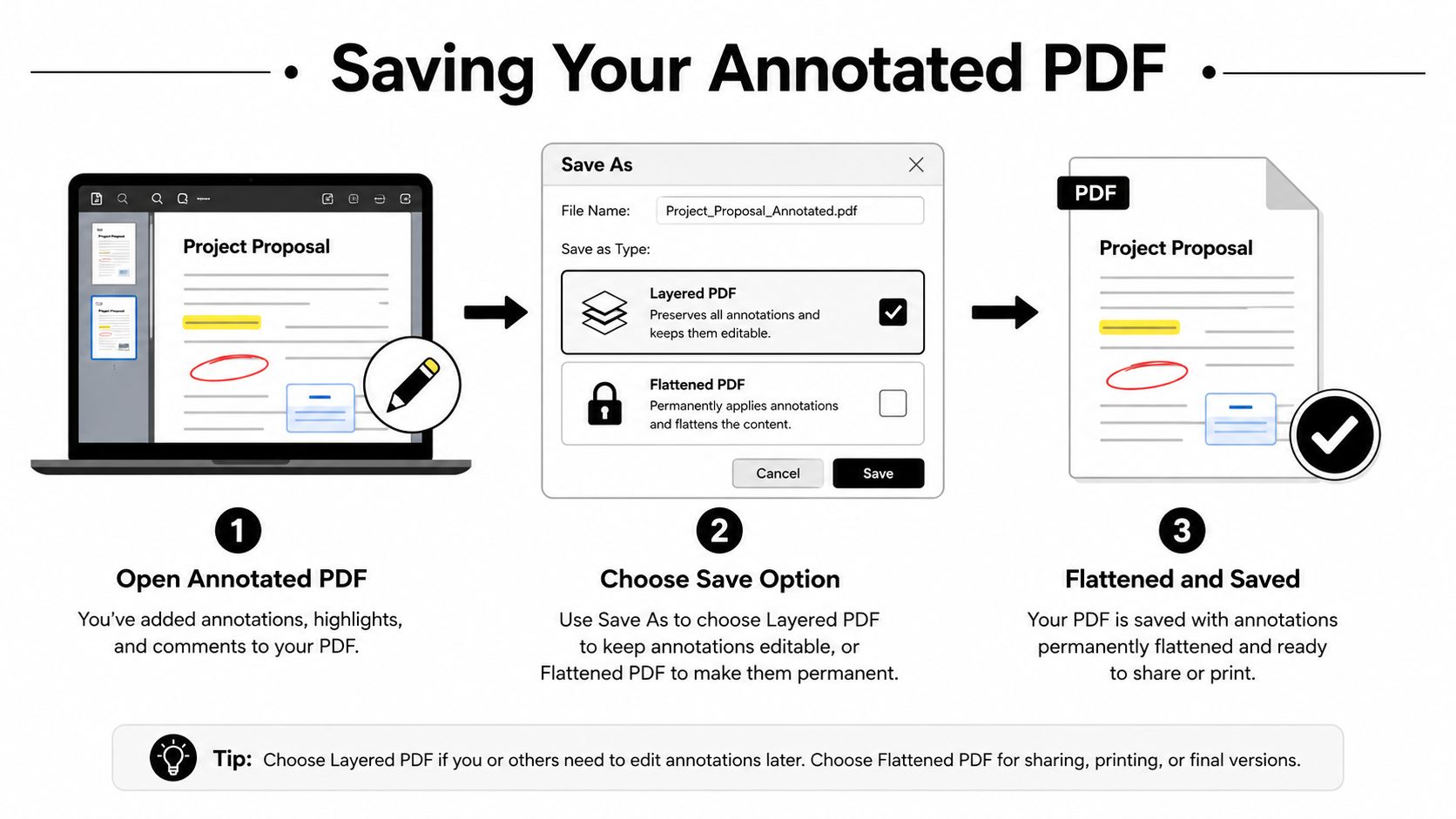
Saving an annotated PDF involves a choice that many interfaces hide. You may keep annotations as editable objects, or you may flatten them into the page so they appear consistently in more viewers. The first option preserves flexibility. The second prioritizes predictable display.
A layered copy is useful when another reviewer may need to move, recolor, resize, or delete a mark. A flattened copy is useful when the recipient only needs to read or print the final result. Keep both when the document matters, and never treat the flattened version as your only working file.
Export choices that preserve the work
- Browser download: Choose download or export as PDF rather than taking a screenshot. Reopen the downloaded file in a second viewer before sharing it.
- Print to PDF: This can produce a broadly readable file, but it may flatten annotations and remove editability. Use it for a final viewing copy, not your source file.
- Save as an image: JPEG is suitable for a visual snapshot, but it turns the page into pixels. Text search and annotation objects won't behave like they do in a PDF.
- Desktop save: Preview, Xodo, and similar tools may offer different choices for preserving or flattening markup. Read the export dialog instead of accepting the default.
- Mobile share: After marking up in Files or Google Drive, save a distinct copy before sending it through email, cloud storage, or AirDrop.
Signatures deserve extra care. Flattening can make a signature appear on the page, but it can also break form-field behavior or remove the ability to inspect the signature object. If the recipient needs a signature field rather than a visual signature, preserve the form structure and confirm the expected workflow first.
Use the PDF compression guide only after confirming that annotations survived. Compression can be useful for sharing, but it shouldn't be the first troubleshooting step when ink is missing.
File rule: Keep an untouched original, an editable annotated copy, and a flattened sharing copy when the review may continue.
Quick Fixes When Your PDF Markup Goes Wrong
PDF markup usually fails at the handoff, not at the moment you draw. The browser shows the ink, the app appears to save it, and the recipient opens a file that looks different. Treat the exported document as a separate deliverable that needs testing.
When ink disappears
The editor may have kept the strokes in a temporary raster canvas or used an annotation handler that another viewer doesn't understand. Download the file again with annotations preserved, then test it in a second PDF reader. If the receiving app doesn't support the same annotation behavior, create a flattened sharing copy while keeping the editable original.
When marks become uneditable
Printing to PDF, exporting as an image, or saving through a destructive markup tool can flatten ink into the page. That isn't necessarily a defect. It's a format choice. Return to the original or layered copy when you need to move one mark, change its color, or remove only part of the drawing.
When handwriting looks wrong
If the PDF was saved as an image, your handwriting becomes part of the page pixels. OCR may recover some printed text, but it won't reliably restore editable pen strokes. Redrawing on the image should be a last resort, reserved for a final visual copy when the original annotation layer is unavailable.
Use this short checklist before sending a marked-up file:
- Open the export elsewhere: Confirm every page contains the expected marks.
- Check the layer state: Decide whether the recipient needs editable annotations or a final flattened view.
- Inspect signatures: Make sure the signature remains visible and that required fields still work.
- Avoid JPEG for working files: Keep PDF format when text, search, and annotation behavior matter.
- Preserve versions: Don't overwrite the untouched original.
Answers to common edge cases
How do you remove one mark? Select the annotation and press delete when the tool supports object selection. If the drawing has already been flattened, you can't remove it cleanly without returning to an earlier copy.
How do you add a signature that survives printing? Place the signature on the page, export a tested PDF, and verify it in print preview. Keep the original in case the recipient requires a formal signature field.
Can two layers stay editable side by side? Only when the editor preserves separate annotation objects or layers. Save a working copy before flattening, because a flattened page won't retain that separation.
Why does a circle look uneven? Use a shape or snap-to-shape tool instead of freehand ink. Structured markup is more readable when precision matters.
What should you do if the app asks for an account before export? Stop and keep the original file. Use a browser tool or desktop application that lets you download without an unwanted sign-in requirement.
Devnitys curates free online tools for PDF editing, conversion, compression, and other everyday productivity tasks, including browser-based options for drawing on PDFs. Visit Devnitys to find a no-signup-friendly tool for your next markup, test the exported file in another viewer, and keep an editable copy before sharing.